
Supports almost all audio formats
MP3, AAC, WAV, FLAC, AIFF, M4R, M4A, APE, OGG, Opus, WMA, DSF, DSD and many more public formats, supporting Hi-Res audio quality

Multi-platform support
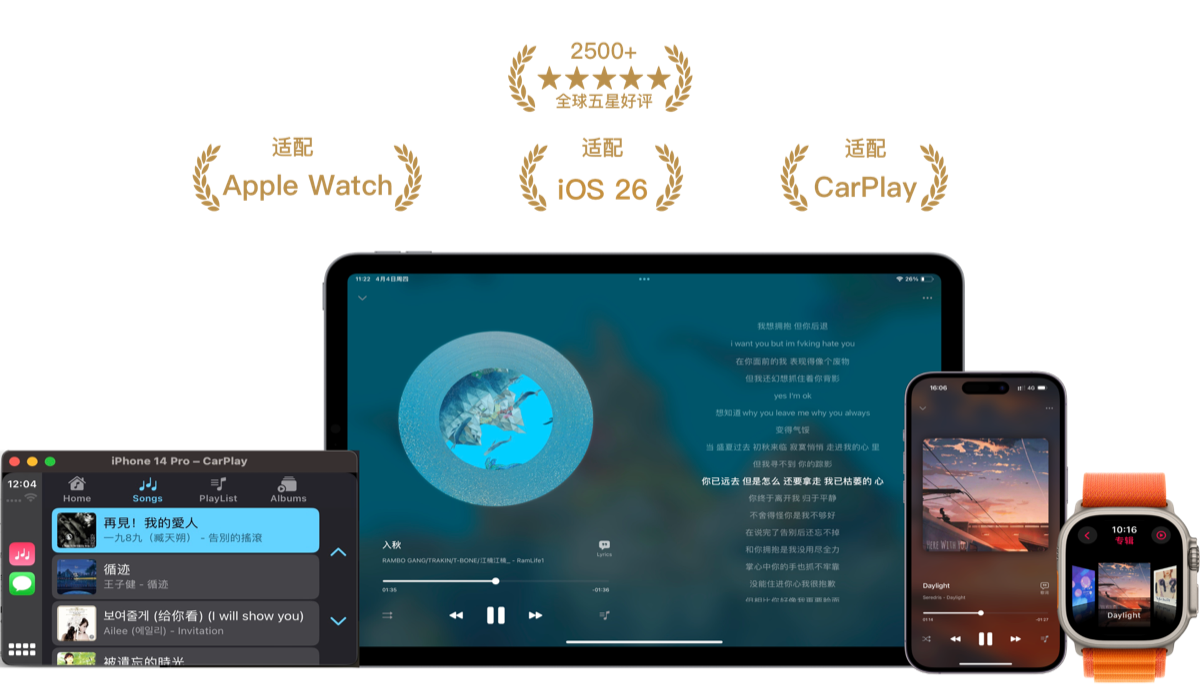
iPhone — Simple, easy to use, and feature-rich
Apple Watch — Listen to music without your phone
Supports speaker and Bluetooth playback, audiobook mode, variable speed playback, etc. Minimum watchOS 8 required
CarPlay — Display lyrics right on your car screen
iPad — Optimized for landscape and Split View
More platforms coming soon, such as Mac and Apple TV

Super convenient song import
Wi-Fi import
Connect your phone and computer to the same Wi-Fi network to easily import songs
USB cable import
No Wi-Fi? You can also import using a USB cable
Import from the Files app
Directly import music from the built-in Files app on your phone
Import from iTunes/iPod music library
Import local music from the iTunes/iPod music library on your device
Import via AirDrop
Import music shared via AirDrop

Manage your music library
Multiple list types
Browse and manage all your local music by songs, albums, playlists, artists, folders, and more
Multiple sorting options
Sort by song name, artist, album, date added, play count, recently played, and more
Edit song metadata
Edit song title, artist, album, cover art, lyrics, and other tag information
AI cover matching & automatic cover art

Clean player UI with lyrics display
Full playback controls with multiple play modes and vinyl/colored vinyl styles
Lyrics display — requires an LRC lyrics file or embedded LRC lyrics in the audio file
Variable speed playback & sleep timer
AI cover matching & automatic cover art

Beautiful widgets
iPod widget
CD player widget
Lyrics widget
Control music playback directly from widgets
iOS 17 compatible — interactive widgets supported
FAQ
1. How do I import songs?
The app supports multiple import methods: Wi-Fi import, Files app import, AirDrop import, and scanning your local music library. See the Import Guide for details.
2. The Wi-Fi import URL won't open. What should I do?
- Make sure your phone and computer are connected to the same Wi-Fi network
- Turn off any VPN or proxy on both devices
- Double-check that the URL entered on your computer is correct
- Make sure the app is still on the import page — don't switch apps or lock the screen
3. How do I import lyrics?
- Download the LRC lyrics file for your song from the internet
- Rename the LRC file to match the song file name
- Import the lyrics file into the app — it must be in the same directory as the song file
- Lyrics is a premium feature that requires upgrading to the Pro version
4. Does it support online lyrics matching?
Not yet. We are evaluating this feature and may support it in the future.
5. Will cloud storage be supported?
Yes, it will be supported in the future.