
🛜 Wi-Fi Import
1. Wi-Fi Import
First, make sure your phone and computer are connected to the same Wi-Fi network. If either device has a VPN or proxy enabled, it's best to turn it off.
Then tap the ➕ button in the top-right corner of the app's home screen, or go to the "More" tab and select "Wi-Fi Transfer" to open the Wi-Fi import page.
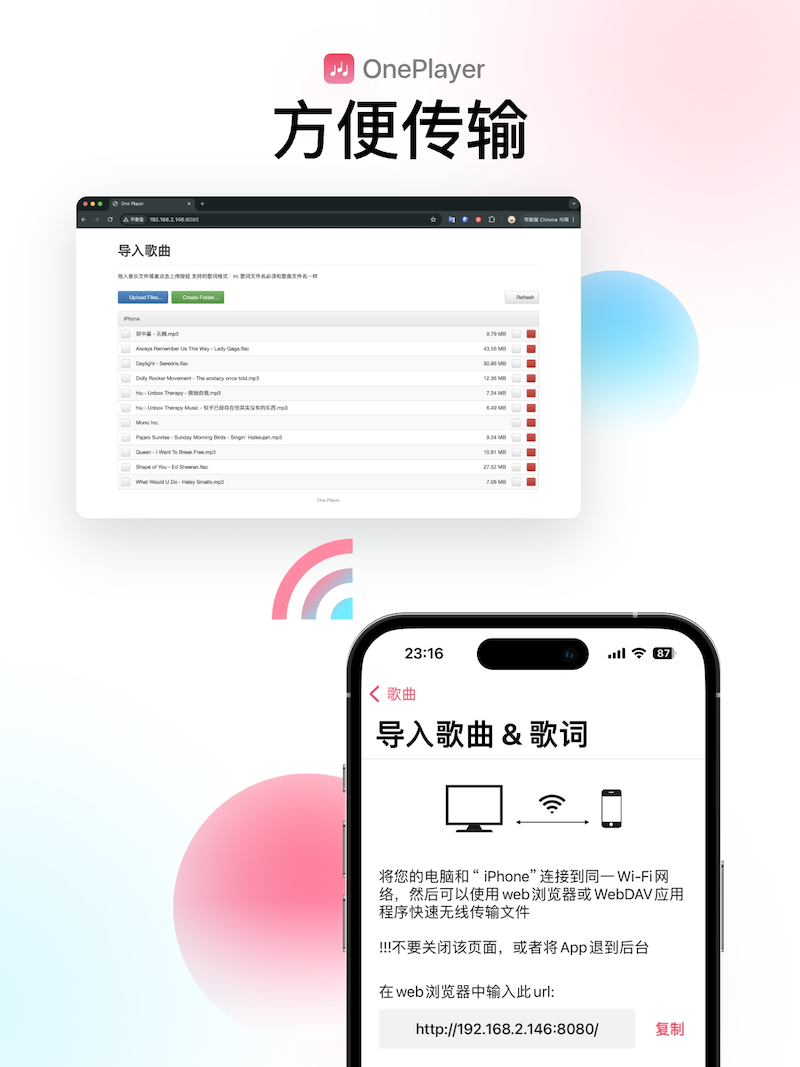
The page will display two URLs: a web URL on top and a WebDAV URL below.
You can copy the web URL (or type it manually) into your computer's web browser — such as Chrome, Safari, Edge, or Firefox — and open the page.
Then you can import songs from the web page on your computer. You can click the import button to select files, or simply drag and drop files onto the page.
⚠️ During the entire import process, your phone must stay awake with the screen on. Do not lock the screen, switch to another app, or leave the import page.
2. If the URL won't open, check the following:
- Make sure your phone and computer are connected to the same Wi-Fi network
- Turn off any VPN or proxy on both devices
- Double-check that the URL is entered correctly — watch out for typos like full-width characters instead of half-width
- Make sure the app is still on the import page — don't switch apps or lock the screen